
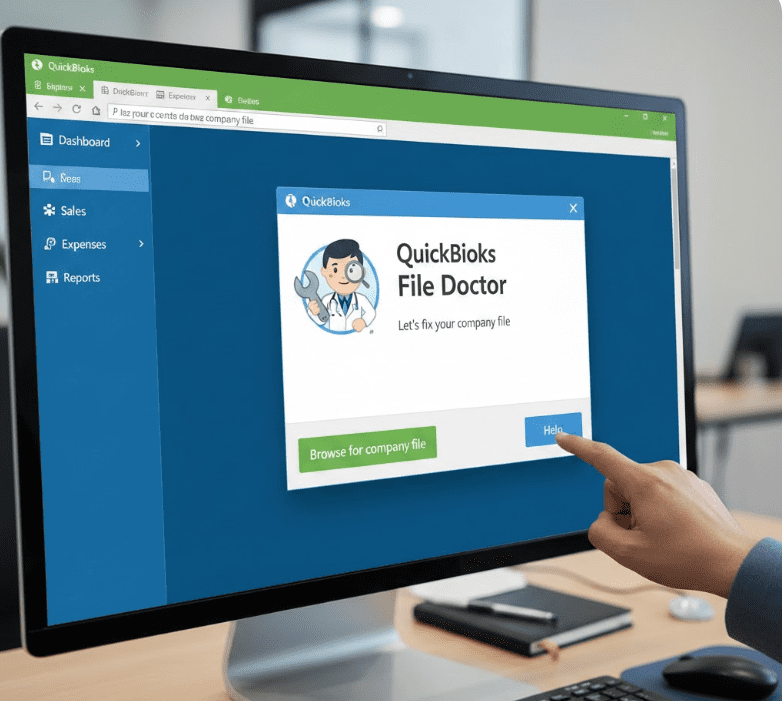
QuickBooks is one of the most reliable accounting tools for small and medium-sized businesses. But even the best software can run into problems. Company file errors, network issues, and multi-user access problems are common frustrations for many QuickBooks Desktop users.
This is where QuickBooks File Doctor comes in.
If you’re using QuickBooks Pro, Premier, or Enterprise and suddenly can’t open your company file or connect in multi-user mode, QuickBooks File Doctor is often the first and smartest tool to try.
In this guide, we’ll explain what QuickBooks File Doctor is, what it fixes, how to run it properly, and when it may not be enough.
What Is QuickBooks File Doctor?
QuickBooks File Doctor is a free diagnostic and repair tool developed by Intuit. It is designed to automatically detect and fix two major categories of problems:
Company file damage or corruption
Network and multi-user connectivity issues
Originally, Intuit offered separate tools for file repair and network diagnostics. Over time, these were combined into a single solution known today as QuickBooks File Doctor. This makes it easier for users to troubleshoot common QuickBooks errors without advanced technical knowledge.
Whenever QuickBooks fails to open a company file or displays connection-related errors, running File Doctor is usually recommended before contacting support.
How to Download QuickBooks File Doctor
QuickBooks File Doctor is available in two ways:
Built into QuickBooks Desktop 2016 and later
Included inside the QuickBooks Tool Hub
If you’re using an older version of QuickBooks, you can download the Tool Hub and access File Doctor from there. The Tool Hub acts as a central place for all QuickBooks repair utilities.
Once installed, the File Doctor tool can be launched in just a few clicks.
Errors QuickBooks File Doctor Can Fix
QuickBooks File Doctor is especially useful for resolving the most common Desktop errors, including:
Company File Errors (6000 Series)
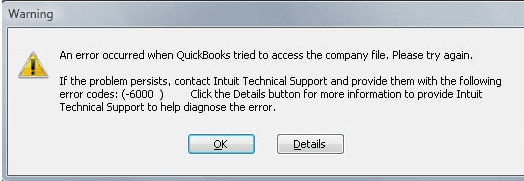
These errors usually occur when opening, restoring, or accessing a company file:
Error -6000, -77
Error -6000, -82
Error -6000, -305
Error -6150
Error -6147
Error -6130
It can also help recover missing data such as customers, vendors, or employee records when corruption is detected.
Network & Multi-User Errors (H-Series)
These errors indicate that QuickBooks cannot communicate properly with the server hosting the company file:
H101
H202
H303
H505
File Doctor checks network configuration, permissions, and database services to restore proper connectivity.
Limitations of QuickBooks File Doctor
While File Doctor is powerful, it’s not a magic fix for every issue. Some limitations include:
Requires QuickBooks Admin login credentials
Cannot repair company files larger than 2GB
Needs Microsoft .NET Framework installed
Deep or severe data corruption may require advanced recovery
Knowing these limits helps set realistic expectations before running the tool.
How to Run QuickBooks File Doctor from Tool Hub
Close QuickBooks Desktop
Open QuickBooks Tool Hub
Select Company File Issues
Click Run QuickBooks File Doctor
Choose your company file (or browse to it manually)
Enter the Admin username and password
Click Next and allow the scan to complete
The scan may take a few minutes depending on file size and network speed. Once finished, restart QuickBooks and try opening your file again.
How to Run QuickBooks File Doctor from QuickBooks Desktop
(Applies to QuickBooks Desktop 2016 and later)
Open QuickBooks Desktop
Go to File → Utilities → Repair File
Select your company file
Choose whether you want to scan file issues or network issues
Enter admin credentials
Let the tool complete the repair process
After completion, always reopen QuickBooks and verify your data.
Why QuickBooks File Doctor Is Worth Using
QuickBooks File Doctor is often the fastest way to get your business back on track because it:
Automatically diagnoses common issues
Fixes network problems in multi-user mode
Reduces downtime and data loss
Helps prevent further file corruption
Eliminates the need for manual troubleshooting
For many users, it saves hours of stress and avoids unnecessary technical calls.
Understanding Network Issues & Hosting Problems
If File Doctor reports that Hosting Mode is off, it means the server computer is not properly set up to host company files. In a network:
The host computer stores the company file
Workstations connect to it using QuickBooks Database Server Manager
QuickBooks uses database services specific to each version (e.g., Database Server 28, 29, 30) to manage file access. These services must be running correctly for multi-user mode to work.
How QuickBooks Accesses Company Files
QuickBooks uses special configuration files to communicate across the network:
.QBW – the main company file
.ND – network descriptor file containing server and port details
File Doctor checks whether:
The company file is currently in use
The server is reachable
File permissions allow access
If communication fails, QuickBooks displays error codes and repair suggestions.
What If File Doctor Finds a Problem?
No Issue Found
If File Doctor reports no issues but the error continues, QuickBooks Auto Data Recovery may be required to restore data from backups.
Issue Found but Not Fixed
In this case, manual recovery or professional support may be needed. Severe data damage often requires rebuilding transactions using a backup file.
Best Practices After Using File Doctor
Once your issue is resolved:
Create a fresh backup immediately
Update QuickBooks to the latest release
Verify and rebuild data regularly
Keep Tool Hub updated for future issues
Preventive maintenance goes a long way in avoiding recurring problems.
Conclusion
QuickBooks File Doctor is one of the most valuable free tools Intuit provides. It plays a critical role in diagnosing and fixing company file corruption and network errors that can disrupt daily business operations.
While it may not fix every advanced issue, it remains the first line of defense for most QuickBooks Desktop problems. Used correctly, it can save time, protect financial data, and keep your accounting system running smoothly.